Complete turnover screener setup
Three independent turnover scenarios, units, the wash-trade filter and settings checks.
What is measured
To notice changes in trading activity, you do not have to keep checking every coin. The turnover screener looks for matches using your conditions. It uses dollar turnover and metrics derived from it. We will cover its three independent scenarios, their units, the filters and how to check your settings. Candle volume on a chart is a different metric.
Change in daily turnover
The first scenario checks how rolling daily turnover changes over your selected interval. Its percentage refers to the turnover metric for the last twenty-four hours. It is not a comparison between two adjacent candle volumes. Set the percentage together with the interval. A positive threshold is used for an increase, and a negative one for a decrease. The minute scenarios use different logic.
Turnover per minute
The second scenario uses a turnover-per-minute amount. The field is measured in millions of dollars: zero point five means five hundred thousand dollars. This is an estimate derived from changes in rolling daily turnover between adjacent minutes, not an exact sum of every trade in that minute. Choose the threshold with that limitation in mind. This scenario checks whether the threshold is exceeded.
Spike against the average
The third scenario compares the minute estimate with the same coin’s average minute over the last twenty minutes. Its threshold is a multiplier. A relative spike and a large dollar amount answer different questions: on a thinly traded pair, a large multiplier can still represent a small amount. The three scenarios are independent. Any enabled scenario can produce a notification if the other restrictions also pass. You do not have to enable all three.
Search filters
The minimum twenty-four-hour turnover filter excludes pairs below a selected dollar amount. It does not set a change percentage or replace the minute threshold. This field also uses millions of dollars. Review the market, favorites and blocked coins. A minimum open-interest filter restricts the search to pairs with futures data. Avoid enabling it accidentally when you want spot matches.
Wash-trade filter
The wash-trade filter applies to the minute scenarios. In soft mode, it excludes cases classified as wash trading and allows suspicious cases through. Strict mode excludes suspicious cases as well; the option to show them in history then becomes relevant. A filter classification does not prove misconduct by an exchange or participant. It is an additional assessment of the available data and needs context.
Limits and adaptation
The cooldown and limit restrict notifications for each coin. If you use adaptive thresholds, review the hint and range separately: the threshold can move within the configured bounds. For our first comparison, leave adaptation disabled so we can review the selected conditions without another threshold adjustment. You can assess that mode separately while keeping the other settings unchanged.
Check and save
Start with one scenario, check its units and filters, save the settings and confirm success. If a historical settings check is available, review its result for the stated period. It helps assess match frequency, but does not promise the same future activity or evaluate profit. When a real notification arrives, open its details. Turnover describes activity; trade direction and the next price move require separate analysis.
More videos
 2:54
2:54
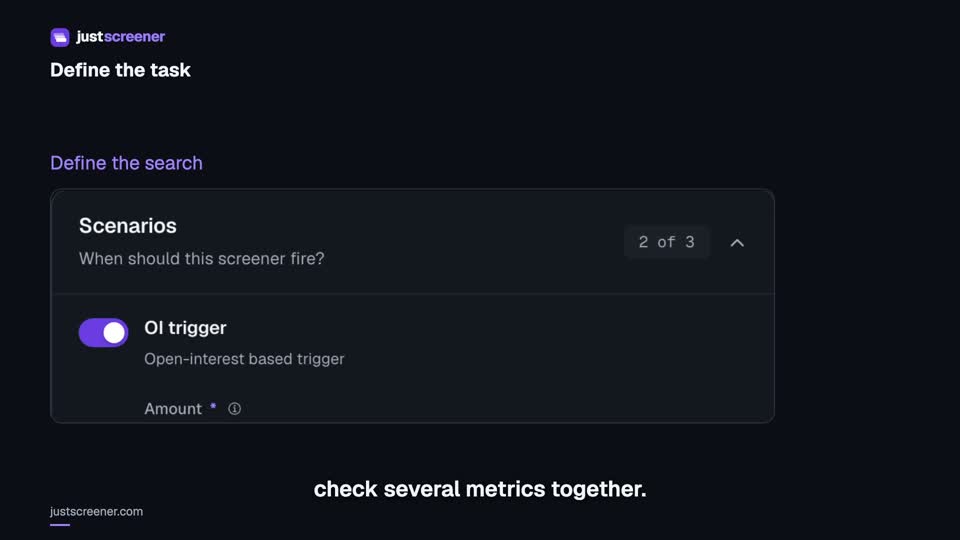
Custom conditions: combine your search rules
Combine price, open interest and turnover conditions: threshold signs, analysis windows, filters and repeats.
Watch video →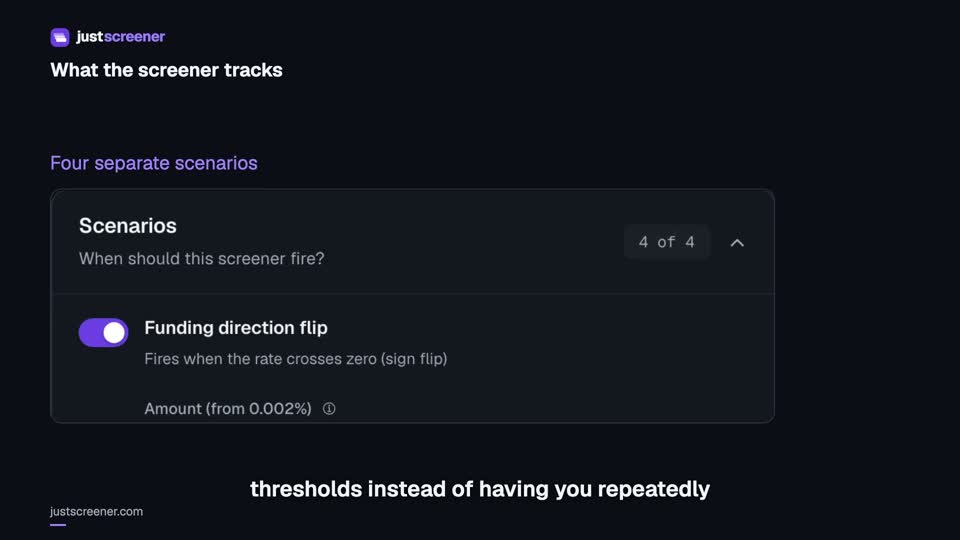 3:33
3:33
Complete funding screener setup
Four funding scenarios: thresholds, sign changes, cross-exchange spread, intervals and filters.
Watch video →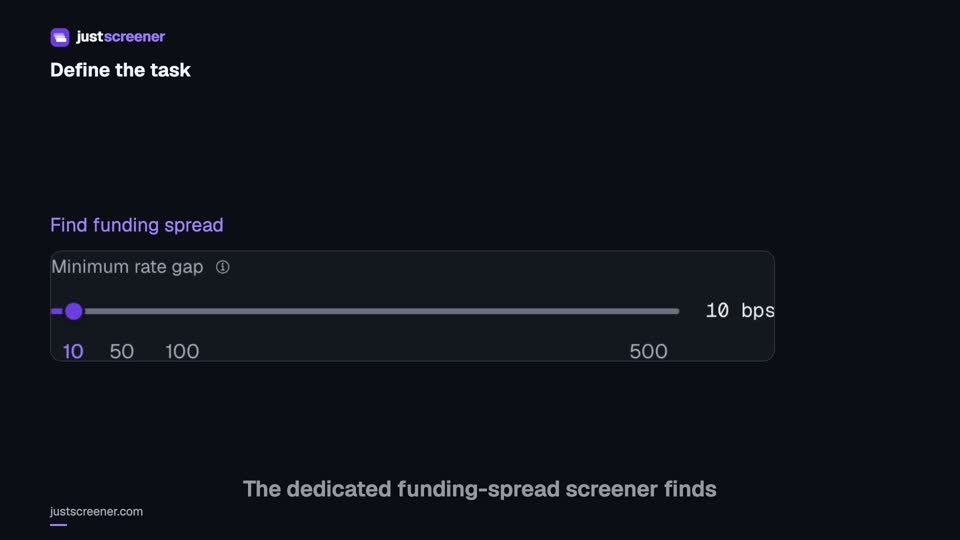 3:20
3:20
Complete funding spread screener setup
Basis-point thresholds, spread stability, the pair universe and per-coin cooldown.
Watch video →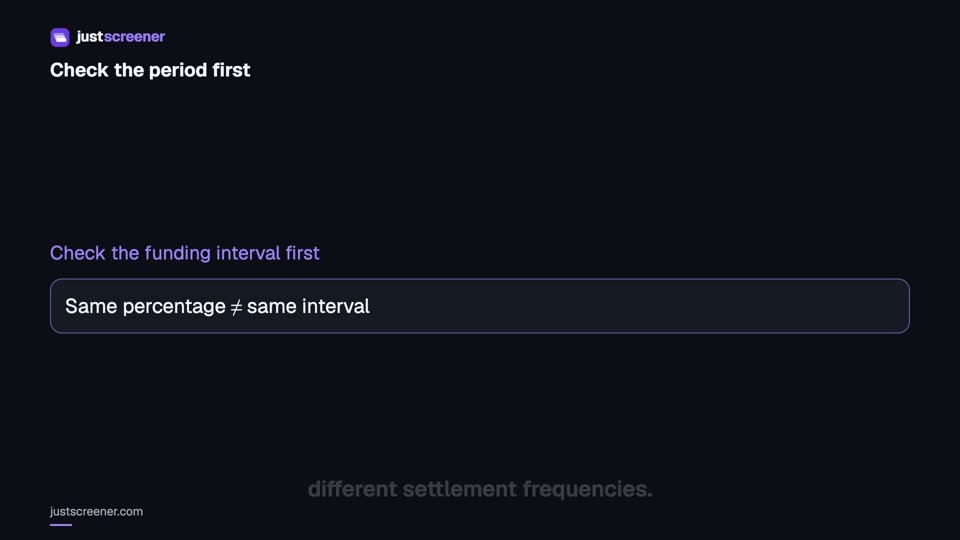 2:36
2:36
Funding: compare different intervals
Eight-hour normalization, unknown intervals and funding calculator assumptions.
Watch video →


