Push notifications on iPhone and Android
Connect push on iPhone and Android: permissions, device subscription and a delivery test.
Push on your phone
Want JustScreener notifications on your phone? We will connect push and check delivery on the device itself. The system permission, this browser’s subscription and the selected dashboard channel must work together. We will cover iPhone first, then Android. Jump to the chapter for your device.
iPhone: install the site
On iPhone, open JustScreener in Safari. Use Share to add the site to your Home Screen. Then launch it using the new icon and sign in if needed. Continue setup inside the installed site. Push for this flow is unavailable in a regular Safari tab, even if your dashboard already has a subscription from another device.
iPhone: connect push
In the notification channel settings, select push and use the button to enable notifications. Accept the system prompt. Then wait for the subscription status for this device. If you previously denied permission, read the dashboard guidance and check the installed site’s notification settings in the system. Pressing the button again may not show another system prompt.
Android: connect push
On Android, open the site in a supported browser and sign in to the same account. To launch it from your Home Screen, you can install the site from the browser menu and open the new icon. Select push in the notification channel settings, enable notifications and accept the permission request. Wait for confirmation of this browser’s subscription. If notifications are blocked, check both the site permission and the browser’s notification permission in Android. Menu names vary between phones. Follow the dashboard guidance and the actual subscription status.
Save and test
In the regular settings, save the selected channel if the change has not been saved yet. In the wizard, complete the remaining steps. Now send a test push notification. Check that it appears on the intended phone, then confirm receipt in the dashboard. A sent status records the attempt to send the test. You confirm receipt yourself after seeing the notification. Repeat connection and testing separately for another phone or browser.
If the test is missing
If the test does not appear, check permissions, this device’s subscription and modes that hide notifications, such as Do Not Disturb. A subscription in another browser does not connect the current one automatically. If the issue remains, contact support with your device and browser details. A successful test checks delivery at that moment. Market notifications also require an enabled screener and matching conditions. Less chart scanning. More time for analysis.
More videos
 2:54
2:54
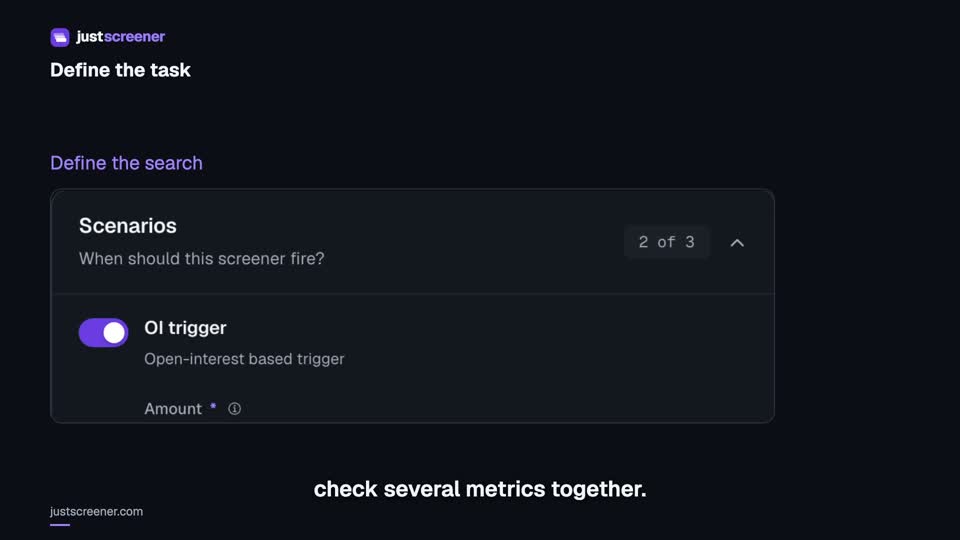
Custom conditions: combine your search rules
Combine price, open interest and turnover conditions: threshold signs, analysis windows, filters and repeats.
Watch video →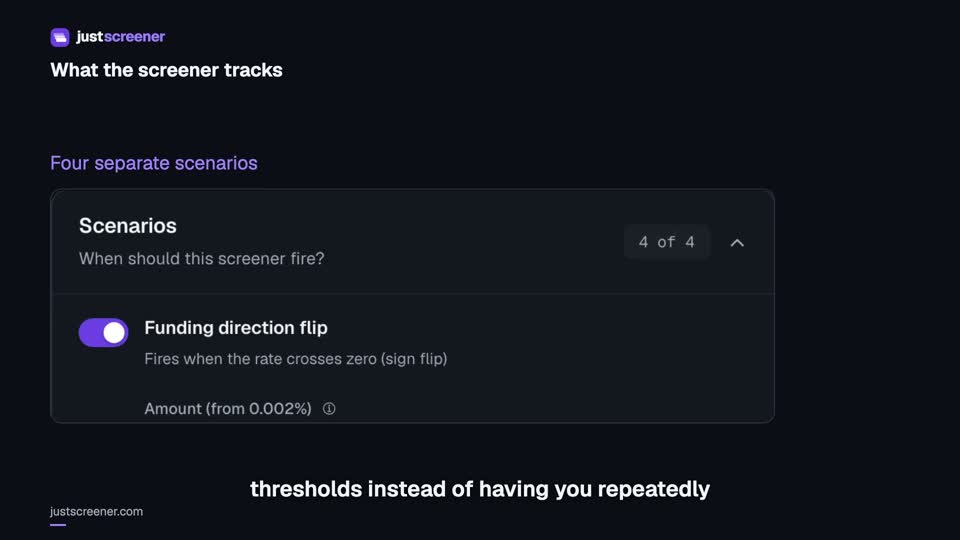 3:33
3:33
Complete funding screener setup
Four funding scenarios: thresholds, sign changes, cross-exchange spread, intervals and filters.
Watch video →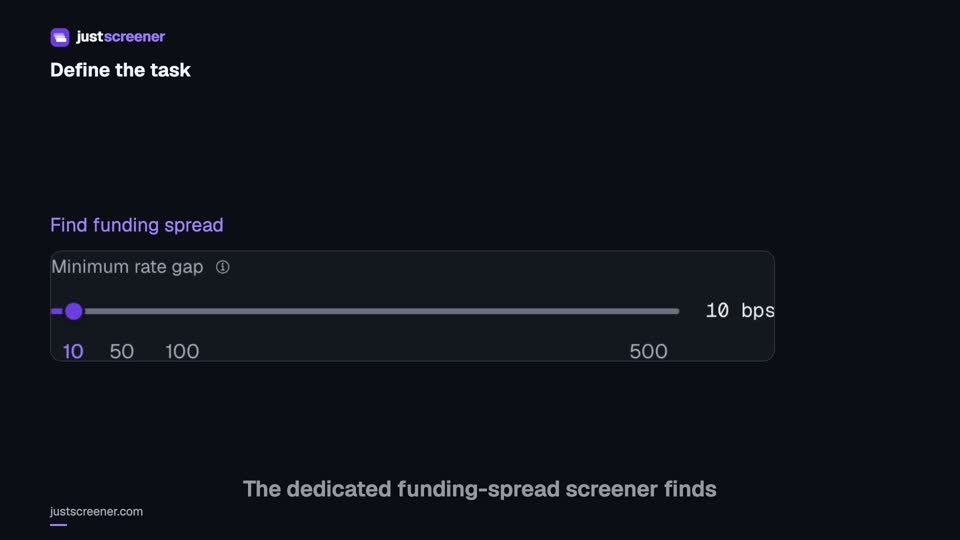 3:20
3:20
Complete funding spread screener setup
Basis-point thresholds, spread stability, the pair universe and per-coin cooldown.
Watch video →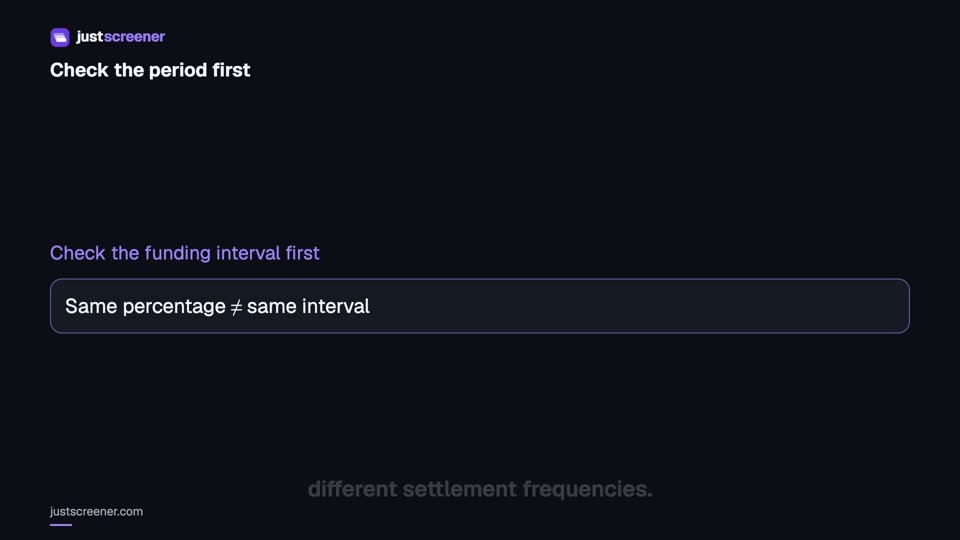 2:36
2:36
Funding: compare different intervals
Eight-hour normalization, unknown intervals and funding calculator assumptions.
Watch video →


