How to configure the price screener: a complete guide
Set a threshold, rolling window, turnover filter and repeat pause, then review a matching notification.
From search conditions to analysis
You open one chart, then another, looking for a coin making a noticeable move. While you study one, you still have to keep track of the others. In this video, we will use JustScreener for that first round of filtering: set conditions, receive a notification and analyse a matching coin. We will follow a price-growth example from start to finish, then see why the same notification can lead to very different price action.
What the screener checks
A screener checks available trading pairs against your conditions. For this search, you do not have to choose every coin in advance. You define the change you want to notice, and the screener looks for matches. A notification means those conditions were met when the pair was checked. It does not tell you whether the move will continue. The goal is to find charts worth reviewing, while keeping the decisions about what to do next in your own hands.
Threshold and rolling window
Open the price screener. In our demo, we want to find a rise of at least four percent over the last five minutes. First, set the threshold to four percent. Then select a five-minute interval. This is a rolling window. The current price is compared with the price five minutes earlier. To keep the numbers simple, if the earlier price was one hundred, a current price of one hundred and four represents a four-percent rise. As new data arrives, the window moves forward and the reference price changes. The check does not wait for the next five-minute candle to close. Four percent is simply our demo condition, not a universal setting for every market. You can choose a different threshold and interval to suit the change you want to track.
Daily turnover filter
Next, narrow the search to pairs with at least five million dollars in daily turnover. A pair below that threshold will fail this filter, even if its price has risen enough. This adds another requirement to our search. Daily turnover alone, however, does not tell you the current spread or order-book depth. Those are separate characteristics that one number cannot replace. The point here is that a filter narrows the set of matches. Choose its value for your own task rather than copying the video by default.
Per-coin notification pause
To avoid returning to the same chart too often, set a fifteen-minute pause between notifications for the same coin. After a notification, another one for that coin cannot arrive before the pause ends. Other coins can still match the search during that time. The end of the pause does not guarantee another notification exactly fifteen minutes later. The conditions must be met again. Use your configured Push or Telegram delivery option. Before leaving the search running, make sure your chosen notification method is connected, then save the screener settings.
Conditions matched
Price has risen from one hundred to one hundred and four within the selected window. Turnover passes our filter, and the notification pause is not blocking delivery. The conditions match, so we get a result. At this point, we can only see the price history up to now. Future candles are still unknown. Open the matching pair's chart and review the context. While the screener handled the filtering, we did not need to inspect every available chart by hand.
Two possible continuations
Now let us reveal two possible continuations. In the first version, price keeps rising after the notification: one hundred and six, then one hundred and eight. Looking at the completed chart, it is easy to assume that the notification predicted the continuation. But that part of the chart did not exist when the notification arrived. In the second version, the starting conditions are exactly the same. Price reaches one hundred and four, then returns to one hundred and two, and finally one hundred. The screener still correctly found the change we asked for. It made no promise that the move would last. This comparison shows the boundary of the task: matching conditions can be automated. A notification still leaves you to review the situation and decide whether it is relevant to you at all.
Review the context
After a notification, review the context: what happened before the change, how it looks on a broader timeframe, and how closely it matches your original task. Passing a filter does not make a coin a ready-made decision. If relevant matches are rare, revisit your search conditions. If there are too many, consider which condition you could make more specific. Adjust settings with a purpose: first define what you want to notice, then examine the results. Working backwards from an attractive historical chart is a different exercise.
Try your own conditions
Start with one clear task. For example, notice fast price increases on pairs that pass your chosen turnover filter. Configure the search, connect notifications and see which charts it helps you find. You can try JustScreener during the trial period. The link is in the description. Choose your own conditions and see how much manual chart checking this approach saves you. Less chart scanning. More time for analysis.
More videos
 2:54
2:54
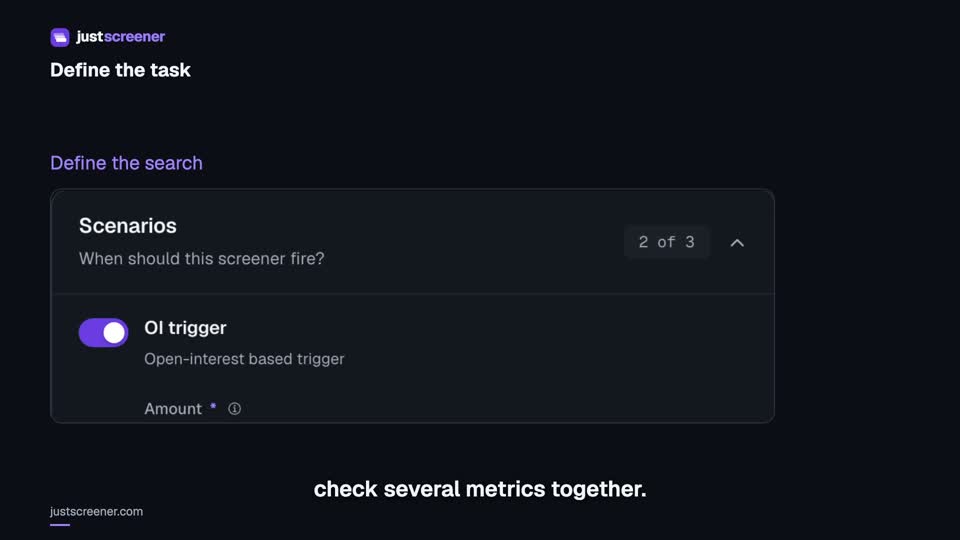
Custom conditions: combine your search rules
Combine price, open interest and turnover conditions: threshold signs, analysis windows, filters and repeats.
Watch video →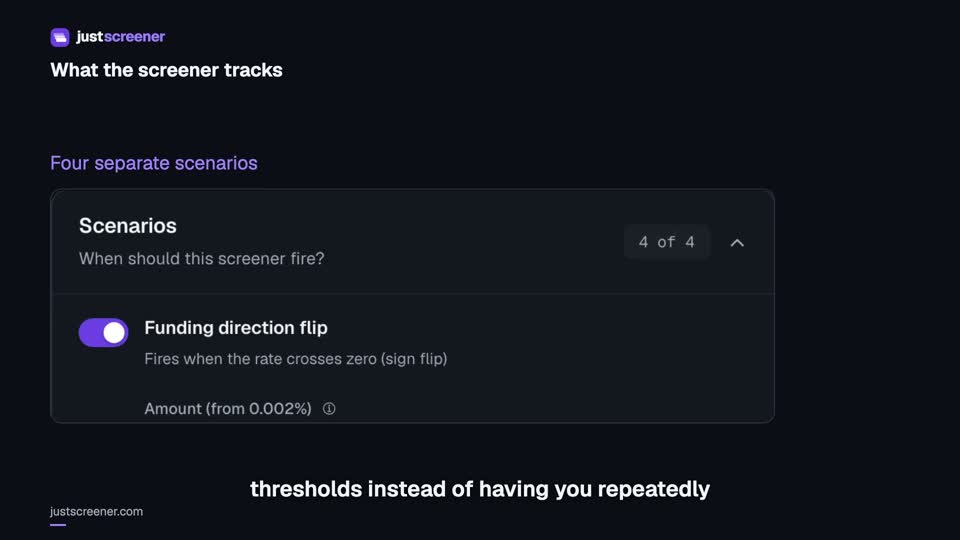 3:33
3:33
Complete funding screener setup
Four funding scenarios: thresholds, sign changes, cross-exchange spread, intervals and filters.
Watch video →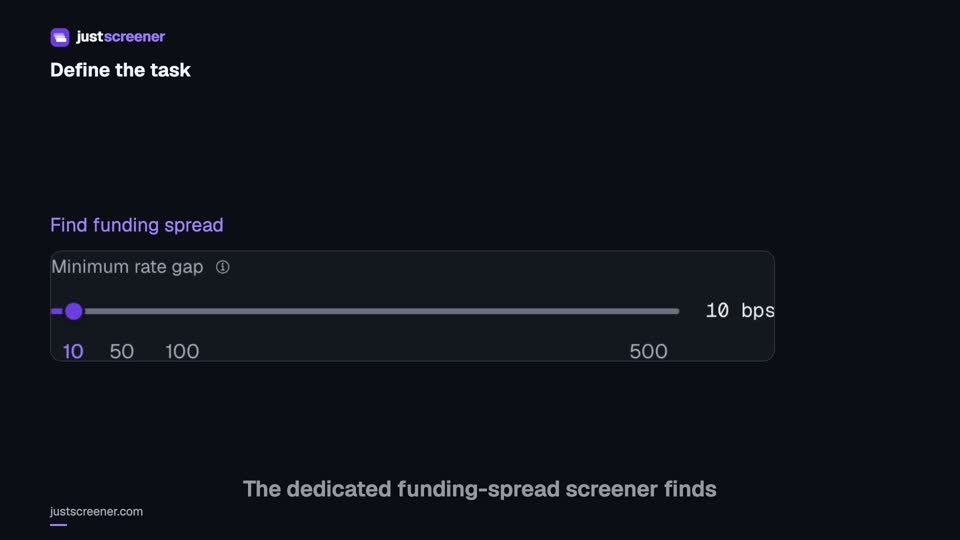 3:20
3:20
Complete funding spread screener setup
Basis-point thresholds, spread stability, the pair universe and per-coin cooldown.
Watch video →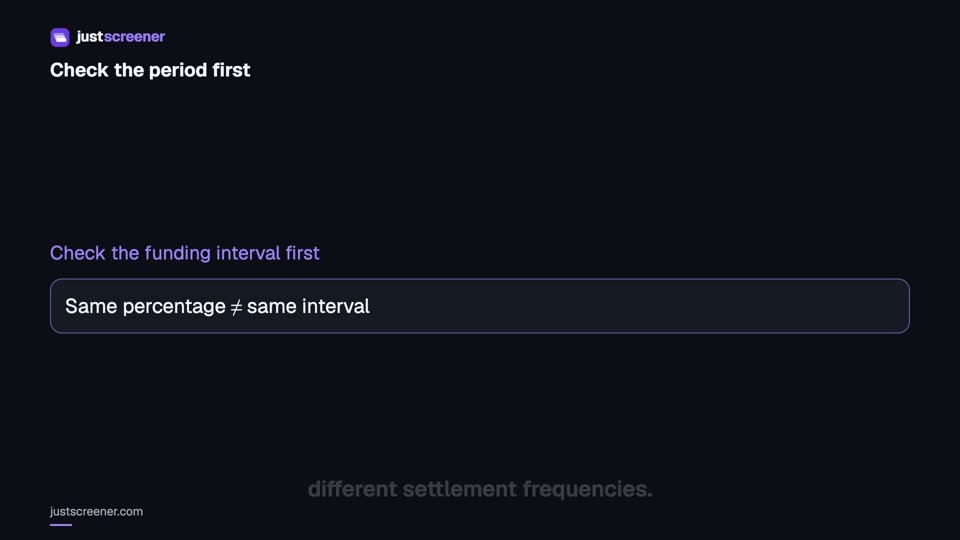 2:36
2:36
Funding: compare different intervals
Eight-hour normalization, unknown intervals and funding calculator assumptions.
Watch video →


